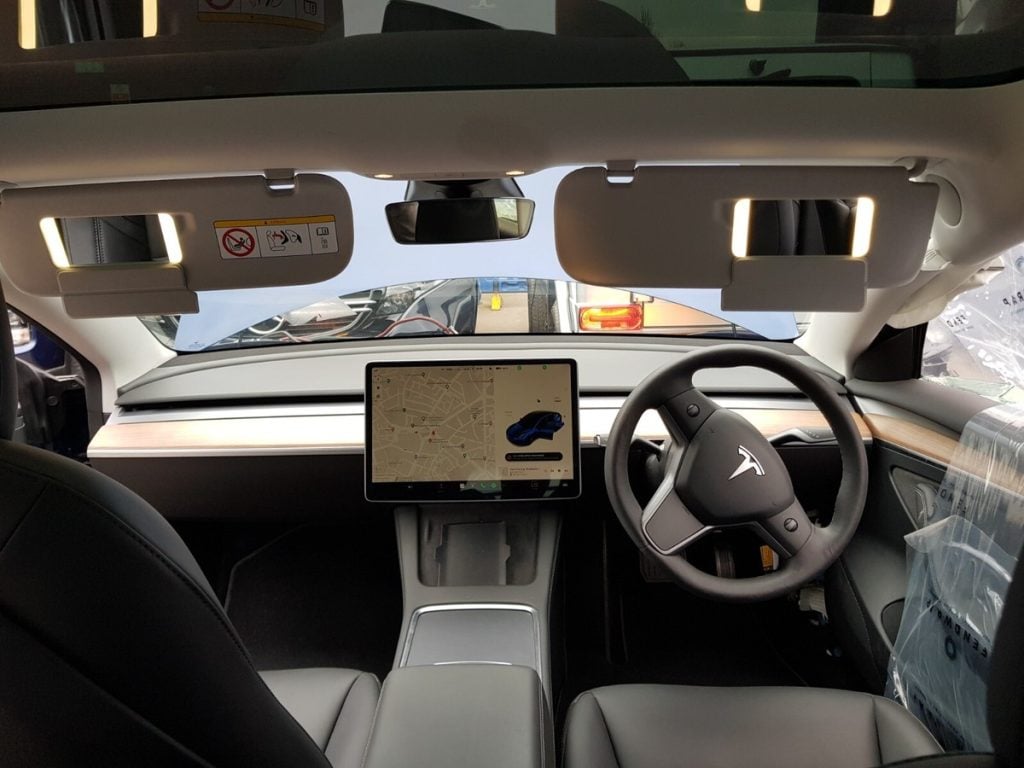
Wondering if your Tesla locks itself when you walk away? Understanding how Tesla’s automatic locking system works can give you peace of mind and help keep your vehicle secure without extra effort.
Tesla vehicles come equipped with smart features designed to make your driving experience seamless and safe. Knowing whether your car locks automatically and how to customize these settings ensures you’re always in control of your Tesla’s security.
In this article, you’ll discover how Tesla’s automatic locking functions, what triggers it, and how to adjust the settings to fit your lifestyle. Whether you’re a new owner or just curious, this guide will clear up any confusion and help you make the most of your Tesla’s security features.
Understanding Tesla’s Automatic Locking Feature
Tesla vehicles include an automatic locking feature designed to secure your car without manual effort. This system improves safety and convenience by locking doors under specific conditions you can customize.
How Tesla Locks Your Car Automatically
Tesla uses sensors and key detection to lock your car. Your vehicle locks once you walk away with the key fob or phone key, ensuring doors secure themselves without your intervention. The system detects when you move beyond a certain distance, automatically activating the locks. Models equipped with the Tesla mobile app also lock when you close all doors and exit. This seamless process helps avoid leaving your car unlocked unintentionally.
Conditions That Trigger Automatic Locking
Automatic locking triggers depend on your vehicle settings and detected motion. Your Tesla locks when:
- You walk away with the paired key device beyond approximately 10 feet (3 meters),
- The vehicle shifts into drive from Park mode,
- Doors close after you exit and the vehicle senses no presence inside,
- You initiate locking via the Tesla mobile app remotely.
You can adjust these triggers in the touchscreen settings or through the Tesla app, customizing how and when locking occurs based on your preferences and security needs.
Customizing Lock Settings in Tesla
You can tailor your Tesla’s locking preferences to improve security and convenience. Adjusting settings happens easily through the Tesla mobile app or the vehicle’s touchscreen.
Using the Tesla Mobile App
Access lock controls remotely via the Tesla mobile app. You can enable or disable automatic locking features, check lock status in real-time, and receive notifications about lock activity. The app also lets you set up additional security measures like PIN to drive, ensuring only authorized users operate your vehicle.
Adjusting Settings on the Touchscreen
Modify lock preferences directly on your Tesla’s touchscreen. Navigate to the Controls menu, select the Locks tab, and toggle automatic lock options. Settings include locking doors when you walk away with your phone key, when the car shifts into drive, or after exiting. You may also customize alerts for lock confirmation to fit your preference.
Benefits of Tesla’s Automatic Lock System
Tesla’s automatic lock system improves your vehicle’s security and convenience by managing access without manual input. This system adapts to your movements and enhances protection through intelligent technology.
Enhanced Security
Automatic locking activates once you walk away with your key fob or phone key, reducing the risk of leaving the car unlocked. Sensors detect when doors close or when the vehicle shifts into drive, securing your Tesla immediately. Customizable alerts notify you of lock status or unauthorized access attempts, strengthening your car’s defenses. Additional features like a PIN to drive add another security layer, preventing unauthorized use even if the key is present.
Convenience for Owners
You gain hands-free access control as the system automatically locks or unlocks based on your proximity. Adjust locking preferences via the Tesla app or touchscreen, allowing real-time remote commands and status checks. The system streamlines daily routines by locking the doors when you exit and walk away, so you avoid forgetting to secure your vehicle manually. Notifications keep you informed of lock activity, enhancing your control even when you’re away from your Tesla.
Common Issues and Troubleshooting
Automatic locking may not work as expected sometimes. Identifying causes and solutions helps keep your Tesla secure and convenient.
When Tesla Does Not Lock Automatically
Tesla might fail to lock automatically if the key fob or phone key is too close, preventing the sensors from triggering lock. Software glitches and outdated firmware can disrupt locking functions. Low battery in the key fob or phone reduces signal strength, causing delayed or no lock activation. Disabled walk-away door lock in settings stops automatic locking when you leave. Environmental factors like interference from other wireless devices can also affect sensor detection.
How to Fix Automatic Locking Problems
Check and increase the distance from your key fob or phone to the vehicle after exiting. Update your Tesla’s firmware through the touchscreen or Tesla app to fix bugs and improve system performance. Replace the key fob battery or ensure your phone’s Bluetooth and Tesla app are active and updated. Enable walk-away door lock in your vehicle settings if turned off. Restart the vehicle system by performing a soft reset via the touchscreen menu to resolve minor software issues. If problems persist, contact Tesla Support for diagnostics or visit a service center for hardware inspection.
Conclusion
Tesla’s automatic locking system is designed to give you peace of mind by securing your vehicle without extra effort. By understanding and customizing these features, you can tailor your Tesla’s security to fit your lifestyle perfectly. Staying on top of settings and updates ensures your car remains both safe and convenient to use every day. Embrace the smart technology Tesla offers and enjoy a seamless, secure driving experience.

Certification: BSc in Mechanical Engineering
Education: Mechanical engineer
Lives In: 539 W Commerce St, Dallas, TX 75208, USA
Md Amir is an auto mechanic student and writer with over half a decade of experience in the automotive field. He has worked with top automotive brands such as Lexus, Quantum, and also owns two automotive blogs autocarneed.com and taxiwiz.com.